



StackSwatch

The No-Code 2D Product Configurator for Wix

Go beyond standard Wix store variant drop-downs. StackSwatch gives your visitors an interactive visual builder where they can customize materials, finishes, and features in real time. Generate instant quotes, produce downloadable PDF spec sheets, and capture qualified leads on your Wix site—without writing code or hiring a 3D designer.

Not affiliated with Wix in any way.

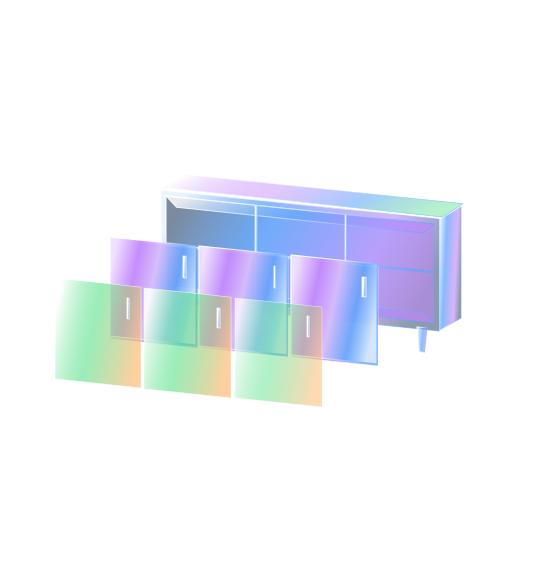
Layer your 2D visuals

Embed on your website

Capture leads

Why Choose StackSwatch for Wix?

Wix makes building websites visual and accessible, and your product configurator should be just as straightforward. StackSwatch replaces heavy 3D rendering engines with a fast, lightweight 2D layer stacker.

  • 2D Layer Stacking Engine: Upload transparent PNG or WEBP images for your materials, panels, and parts. As buyers pick their options, the layers stack seamlessly on top of each other into a finished product preview.

  • Visual Tactile Swatches: Give customers clickable material textures, colors, and finish swatches instead of uninspiring text menus.

  • High-Ticket Lead Generation: Built specifically for custom fabricators, shed builders, and bespoke manufacturers where standard "Add to Cart" buttons don't fit. Leads arrive with exact specs already selected.

  • Real-Time Quote Builder: Add a base price and assign pricing to individual options so prospects see costs update live. Keep pricing public or gate it behind an inquiry form.

  • Branded PDF Spec Sheets: Allow shoppers to instantly download a professional PDF summary featuring their design, selections, price summary, and your business details.

How to Embed Your Configurator on Wix in 3 Steps

Step 1: Build Your Configurator in StackSwatch

  • Create your product option groups (such as siding, finishes, trim, or hardware).
  • Upload your base image and aligned transparent PNG or WEBP layers for each customizable variation.
  • Add your swatch thumbnails, adjust optional pricing rules, and configure your fonts and colors to match your Wix site.

Step 2: Copy Your Embed Snippet

  • Navigate to the Embed & share tab inside StackSwatch.
  • Copy the generated embed snippet to your clipboard.

Step 3: Paste into the Wix HTML Embed Element

  • Open the Wix Editor or Wix Studio.
  • In the left-hand menu, click Add Elements (+) → Embed Code → Embed HTML (or Embed a Widget).
  • Click Enter Code, paste your StackSwatch snippet into the code box, and click Apply.
  • Drag the bounding box to fit your desired layout on the canvas, then click Publish.

FAQ

Yes. StackSwatch works across the standard Wix Editor, the Wix ADI/Studio environment, and Editor X. Because it uses standard responsive HTML/iframe embedding, it adapts cleanly to any Wix layout container.

Your product has options.
Let customers see them.

Build your first 2D configurator today—no coding or 3D modeling required.

Get Started